Security and Password Update
Goal
Reduce unauthorized access risk and improve account safety.
Before You Start
- Confirm you are editing the intended account.
- Use a secure connection for sensitive account changes.
- Save changes and verify after refresh.
Steps
- Open Account Settings -> Security.
- Enter current password and set a strong new password.
- Save and confirm success notification.
- Sign out and sign in using the new password.
- Review active sessions and terminate unknown ones when available.
UI Snapshots (Real Interaction)
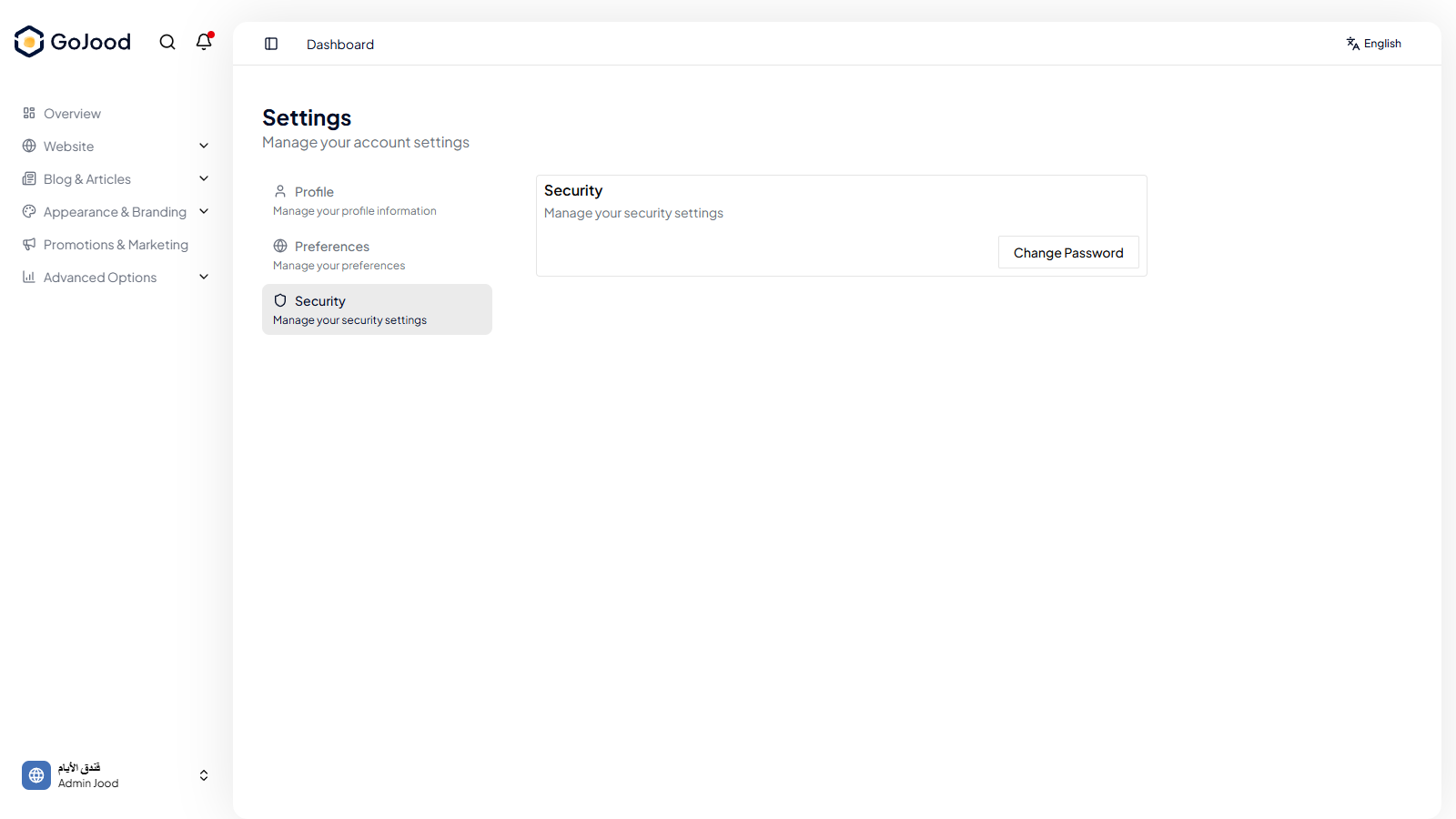
Caption: Security panel used to update password and validate protection.
Verify After Completion
- New password works for login.
- Old password is no longer accepted.
- No unknown active session remains.
Troubleshooting
- If update does not save, review required fields.
- If values look stale, refresh and retry.
- If issue persists, check activity logs or contact support.