Upload and Manage Assets Library
Goal
Keep assets searchable and reusable with clean structure.
Before You Start
- Confirm you are on the correct website context.
- Use an account with permission for this section.
- Save changes before leaving the page.
Steps
- From Website, open Assets Library.
- Upload required files in supported size/format.
- Use search and filters to locate assets quickly.
- Insert assets into pages or articles.
- Remove unused files to keep the library clean.
UI Snapshots (Real Interaction)
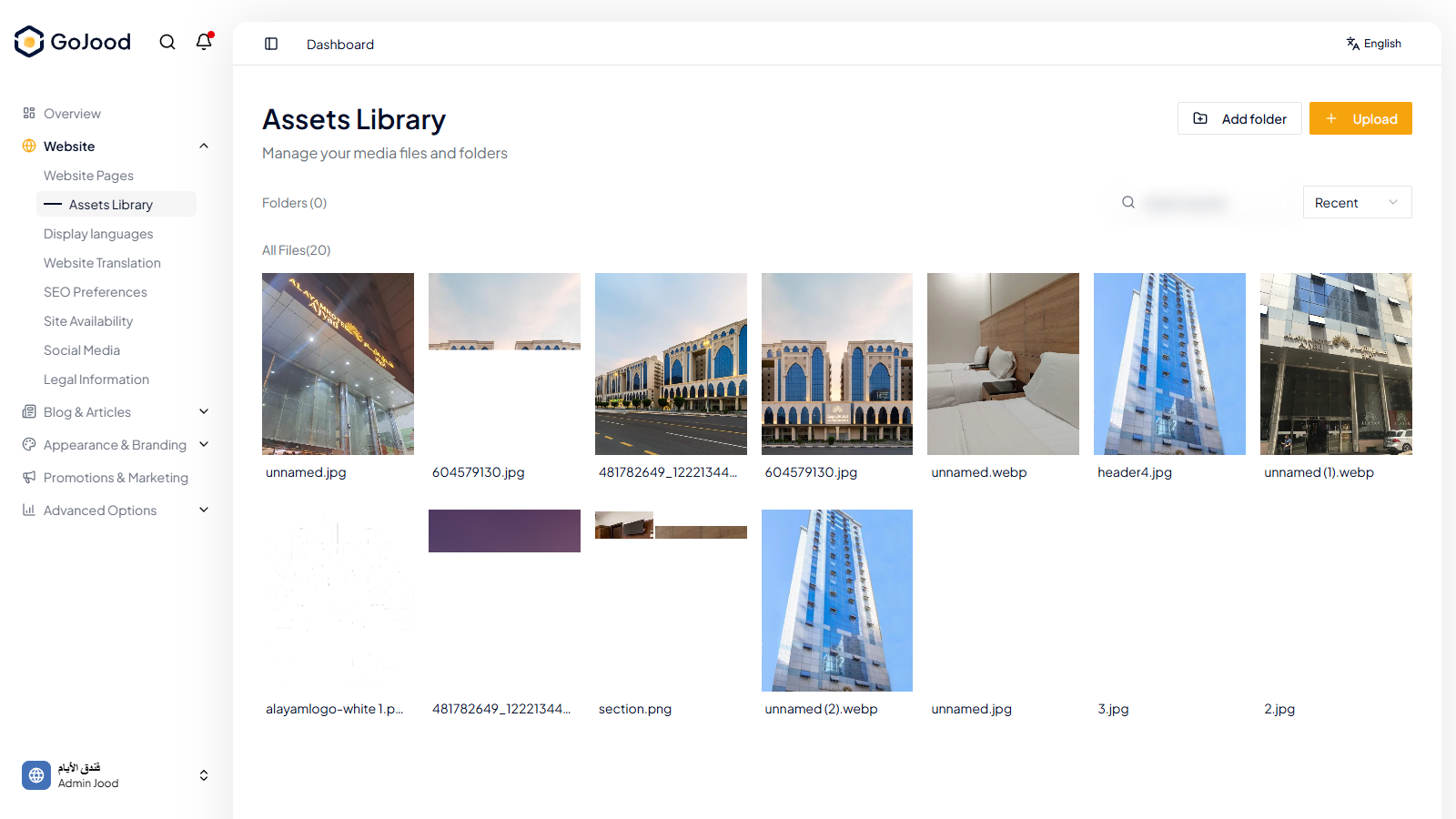
Caption: Assets library view while uploading and organizing media.
Verify After Completion
- New files appear immediately.
- Search locates assets quickly.
- Inserted media renders correctly in content.
Troubleshooting
- If update is not visible, run a full page refresh.
- If save fails, review required fields and validation.
- If issue persists, share screenshot and exact steps with support.